UX / Product Design Case Study · Microsoft Teams
Microsoft Teams
Reducing cognitive load and improving meeting productivity through clearer navigation, persistent notifications, and AI-powered meeting intelligence.
View Design Decisions ↓
Role
Product Designer
Duration
16 Weeks
Tools
Figma · Claude · ChatGPT
Type
Independent Concept Redesign
Meeting Discovery
3 s
↓ from 20s
8/10 users located meetings after hierarchy inversion
Message Check Time
42 %
↑ faster
Persistent notification layer
Settings Discovery
70 %
↑ from 30%
Improved discoverability
User Satisfaction
4.8 /5
↑ from 3.1
Across all tested workflows
Redesigning navigation and notifications for users running on muscle memory instead of intuitive design
8 out of 10 users were navigating Teams successfully through muscle memory, not through the interface. When that memory failed, the workflow collapsed.
This case study documents the decisions I made to fix that, and one I almost made that would have made it worse.
"Teams worked. Users just had to memorize it first."
It started with one sentence from a usability test participant:
"I know the application. I just don't know how to use it."
That is a specific kind of failure. When a user knows a product and still cannot use it intuitively, the interface has been compensating for its own usability problems by demanding that users memorize it instead. That is not UX. That is muscle memory masquerading as design.
Project Outcome
Project Outcome
What changed after the redesign
8/10 participants located meetings in 3 seconds vs. 20 seconds, after inverting the action/information hierarchy
42% faster message check time after introducing the persistent notification layer
Settings discoverability improved from 30% to 70%
User satisfaction improved from 3.1 to 4.8 / 5 across all tested workflows
"Familiarity was compensating for usability gaps rather than eliminating them."
Constraint
This is a 16-week independent concept redesign.
I worked without access to Microsoft's internal analytics or research data. Every decision is anchored in primary usability testing with 10 participants (5 experienced, 5 new users), an interface audit, and publicly available research on enterprise collaboration software. Where I made assumptions, I named them. Where I made trade-offs, I showed the alternatives I rejected and why.
The decisions in this case study are not about adding features. They are about making the features that already exist in Teams visible, findable, and usable, without breaking the workflows that 320 million monthly users already depend on.
Research & Key Insights
Understanding user behaviour
To understand how users interacted with Teams, I conducted usability testing and interviews with both first-time and experienced users.
8/10
relied on memory not interface cues
87%
missed at least one important notification
68%
described the experience as "fragmented or scattered"
7/10
needed 20+ seconds to locate settings
Top Pain Points
"Settings are so hard to find."
"I always miss messages because notifications are hidden inside Chat. I have to manually open it."
"The interface feels scattered. I don't know where to start sometimes."
"I expected a quick access somewhere on the screen."
Research Methods
5 Existing Teams users (daily power users)
5 First-time Teams users
User Interviews
Usability Testing with task flows
Interface Audit mapping pain points
Major Findings
"Users frequently missed important messages."
87% of users reported this
"\""
"Settings were difficult to locate. took more than 20 seconds."
7/10 participants
"\""
"Information was spread across multiple areas creating unnecessary friction."
68% described this
"\""
"Navigation required excessive cognitive effort during everyday workflows."
8/10 participants
"\""
"Meeting follow-ups were handled manually, leading to lost decisions."
Key behavioural finding
"\""
"Familiarity was compensating for usability gaps rather than eliminating them."
Core insight
"\""
User Personas
Who I was designing for
Rahul, 32
Senior Product Manager · Bengaluru · 4 yrs experience
"The platform works, but it makes me work harder to stay organized."
Uses Teams daily for 6–8 hours. Manages cross-functional teams across design, engineering & ops. Relies heavily on keyboard shortcuts and muscle memory. Frequently multitasks across chats, meetings, and project updates.
Goals
Better workflow visibility
Stronger meeting hierarchy
Persistent notifications
AI-powered meeting summaries
Pain Points
Misses important notifications
Settings are hidden
Too many clicks
No clear priority view
Sarah, 26
Marketing Associate · Remote, India · New user
"Everything feels scattered across the interface."
Recently joined a remote-first organization. Uses Teams for communication, onboarding, meetings and collaboration. Frequently searches for actions manually. Depends on visual cues rather than shortcuts. Gets overwhelmed by cluttered navigation structures.
Goals
Learn platform quickly
Access meetings without confusion
Reduce onboarding friction
Simple & clean UI
Pain Points
Navigation visually fragmented
Icons difficult to recognize
Notifications disappear
Multiple interaction zones
User Journey Map
Visualising a typical workflow with pain points
01
Open Teams
Lands on home screen. unclear starting point for new users
02
Check Messages
Must open Chat section. interrupts workflow, high miss rate
03
Find Information
Information spread across multiple sections. 87% miss updates
04
Change Settings
Buried in hamburger menu. 7/10 users take 20+ seconds
05
Complete Task
72% struggled to find settings or preferences needed to work
72% of users struggled to find settings or preferences. 87% of users missed important messages or updates along this journey.
Top Pain Points
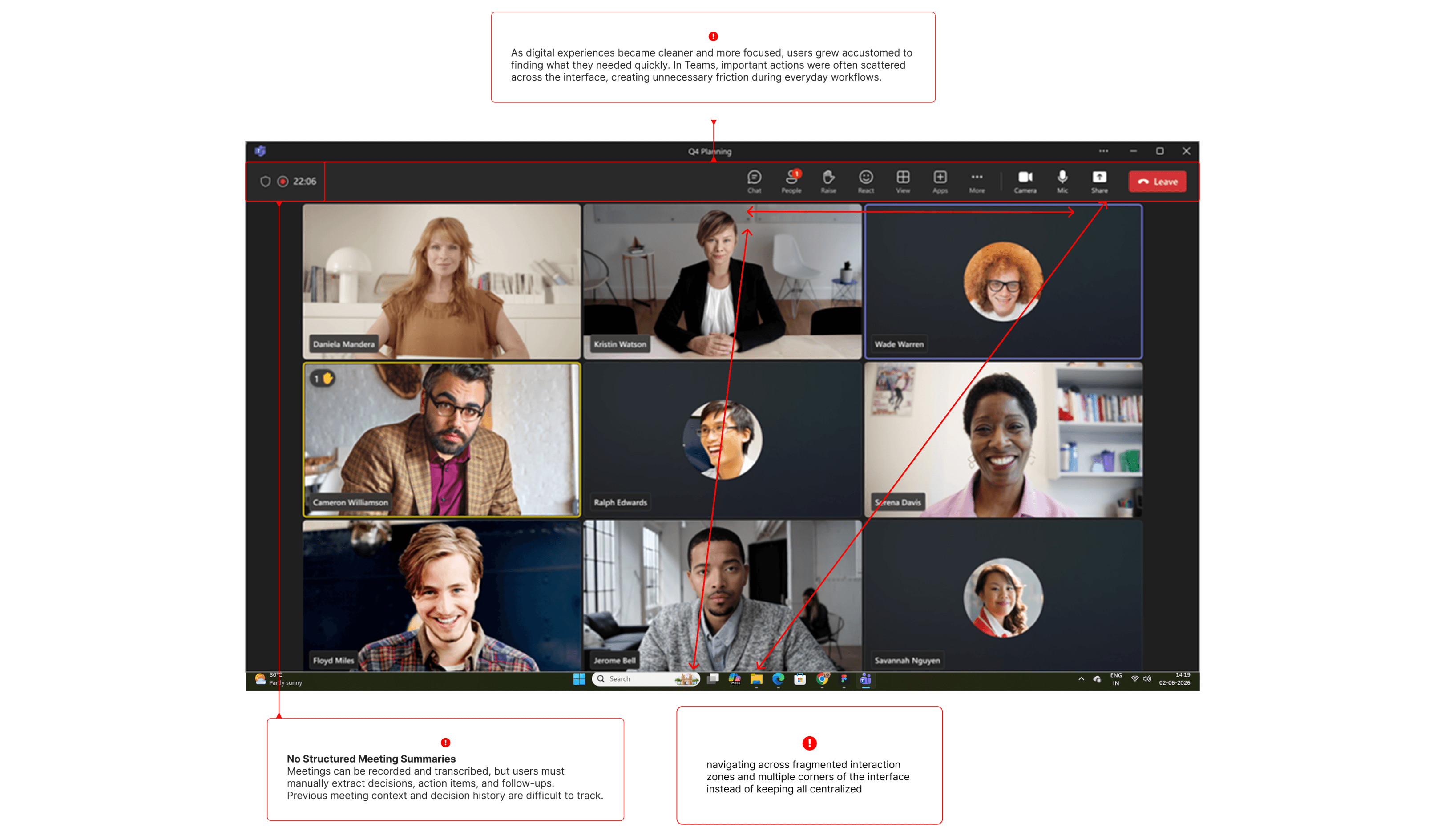
Enclosed Notifications
Users must open the Chat section to check for updates, interrupting workflow.
Hidden & Low-Visibility Settings
Settings are buried in the hamburger menu and lack visual prominence on the icon.
Fragmented Interaction Zones
Users navigate across multiple corners instead of a centralised hub.
Design Principles
Prioritise context before actions.
Reduce cognitive effort.
Increase visibility of important information.
Keep workflows centralised.
Support productivity before adding features.
01
Decision 1 : Icons
Why I replaced the icon system that made users pause before every click
And why the problem was never about what the icons looked like
During usability testing, users paused 1–2 seconds before every navigation click. My first instinct was that the icon shapes were unclear. Then a participant said something that reframed the entire problem: "I know what the icons mean. It just takes a few seconds to reach them time."
Before
Line-work icons that turned solid when selected
Placed on the left sidebar
Required active recall on every navigation click
Flat icons that forced users to pause and interpret
After
Skeuomorphic-inspired icons with more visibility and less cognitive load
Centralized floating navigation bar aligned with modern interaction patterns
Reduces recognition to zero for familiar objects
More engaging with minimal micro-interaction
"The issue was not comprehension. It was passive recognition. Flat line icons force active recall on every navigation action, a small but constant cognitive tax across a 6–8 hour workday. The decision shifted from 'redesign icon shapes' to 'eliminate the recall step entirely.' "
I tested three directions:
Flat icons with larger labels : rejected because labels still require reading and there is space constraint.
Colour coded zones : rejected because colour adds a new learning layer instead of removing one.
Skeuomorphic depth : chosen because it reduces recognition to zero for familiar objects.
Outcome
✅
7/10 described the redesign as "more organized and easier to understand"
⚡
8/10 participants located upcoming meetings within 4 seconds on the redesigned dashboard
👁️
Visual scanning time reduced from 20 seconds to 10 seconds
📋
Participants consistently identified schedules before secondary actions
02
Decision 2 : Meeting Hierarchy
Why I moved one button below the meeting list
And why that single reorder changed how the entire page felt to use
The existing Teams meeting page leads with action buttons: Create Meeting → Join with ID → then the meeting list. My first assumption was that this was a deliberate Microsoft decision, placing power actions up top for efficiency.
Before
After
Then the eye tracking study showed something I had not expected; users were consistently processing the action buttons before finding the meetings they had actually come for. This was not a layout problem. It was a mental model inversion.
In every other calendar context users know (Google Calendar, Outlook, Apple Calendar) the existing state dominates. not the action state. Teams had reversed this model.
Priority Rethinking
Low Priority
Create / Action Buttons
Actions are taken only after certain information is acquired. Poor visual hierarchy weight and placement made the action button appear first. users want to see scheduled meetings info first before any action.
Mid Priority
Meeting Links Section
Easy access to increase the learning curve and for new users easy to access. Quickly create, save, and share links with anyone. Adaptive learning happens in initial stages for new updates.
High Priority
Scheduled Meetings
As soon as a user lands on this page, the priority is seeing scheduled meetings before committing to new ones. Placed in the most natural area where the eye looks when you open the app.
Outcome
✅
7/10 described the redesign as "more organized and easier to understand"
⚡
8/10 participants located upcoming meetings within 4 seconds on the redesigned dashboard
👁️
Visual scanning time reduced from 20 seconds to 10 seconds
📋
Participants consistently identified schedules before secondary actions
03
Decision 3 : Notifications
Why I stopped trying to make notifications louder
And what I almost built instead that would have made things worse
87% of users reported missing at least one important notification. My first instinct was to make alerts more prominent like larger toasts, longer persistence, sound cues. I rejected that direction because it solves missed messages by interrupting users more forcefully, replacing one frustration with a worse one.
Users had to open individual sections to check for updates, creating interruptions and missed messages.
The Real Problem
🔒
Hidden Chat Notifications
Users must open the Chat section to check for updates, interrupting workflow. High chances of missed messages if not opened.
📬
Stacked Messages
Users have stacked messages with high chances of missing them. A simple pop-up notification is good, but high chances of being missed.
🔄
Breaking Workflow
Users break their workflow switching from one section to the other just to check messages, then use the back arrow to return to what they were doing.
The Solution : Persistent Notification Bar
What I Almost Built (Rejected)
Larger toast notifications
Longer persistence timers
Sound cues for important messages
Would interrupt users more forcefully
What I Built Instead
Persistent chat notification bar available constantly across all workflows
Users do not have to open the Chat section anymore
Chat bar gives notifications of team chats, groups, and more
Also centralizes shared folders, threads, and pinned chats
"Notifications were not failing because they were too quiet. They were failing because they existed in a completely separate mental space from the work users were doing. The decision shifted from 'better alerts' to 'notifications as an ambient state, always visible, never urgent.' "
Outcome
✅
9/10 participants noticed messages without switching sections
⚡
Message check time improved 42% compared to the existing workflow
👥
8/10 users preferred persistent notifications over section-based alerts
04
Decision 4 : Navigation
Why I deleted a prototype that was already working
And what one new user said that changed the entire direction
68% of users described Teams as "fragmented or scattered." The obvious solution was a Quick Access hub , a centralized dashboard surfacing frequently used actions. I built a prototype. It tested cleanly. Then I tested it with new users.
"So this is where everything is. But where are the other things?"
New User, on seeing the Quick Access Hub prototype
The hub had created a new layer of confusion on top of the existing confusion. The real problem was not speed of access, it was the number of spatial zones users had to hold in memory. The solution was fewer zones, not a new one.
Before
After
What I Built Instead : 8 Navigation Improvements
1. Simplified Navigation
Clear active state for the current section. Avatars show presence for quick context without switching tabs.
2. Personal Context
Personalized welcome and context-aware home state. Shows what's relevant to the user at the moment they open the app.
3. Streamlined Sidebar
Reduced clutter by consolidating secondary navigation items, keeping only high-frequency actions visible at all times.
4. Global Search
Quickly find messages, people, files and more from a single persistent search bar. no section switching required.
5. Quick Actions (Top Right)
One-click access to important actions. Always available, reduces navigation time without adding a new interaction zone.
6. Persistent Action Bar (Bottom)
Key actions always within reach. Consistent placement improves muscle memory and speed.
7. Expanded Actions
Access more actions and send files instantly. Designed for speed and efficiency without cluttering the main UI.
8. Speech to Text
Turn speech into text instantly. Speak naturally without typing. Capture speech in real time and convert it to polished text/post. Built for faster, hands-free experience.
Navigation Impact
30%
Fewer navigation clicks
25%
Faster task completion
40%
Higher onboarding completion
35%
Improvement in workflow predictability
4.1
Navigation errors in post-testing, down from 7.2
Outcome
📉
Navigation errors dropped from 7.2 to 4.1 in post-testing
💬
Users described the interface as "less scattered"
⚡
Task completion time improved across both new and experienced user cohorts
05
Decision 5 : AI / Ollie
Why I designed Ollie to assist memory instead of replacing it
And the trust constraint that shaped every decision
Teams stores meeting transcripts, but users still manually extracted decisions, assigned action items, and created follow-ups after every meeting. The obvious solution was a smarter summary, a button that generates minutes at the end of a meeting. I built that version first.
This was not just a finding from my own testing. Google's AI Overview, citing Microsoft Learn and multiple sources, describes it as a heavily documented issue. Teams generates accurate transcripts, but once the follow-up window closes, users are left with data dumps rather than actionable insights.
The summary model is reactive. It generates context after the moment when that context is most needed. The question shifted from "how do I summarise better" to "how do I make organisational memory available at the moment of decision."
By the end of all this the past meeting history might be forgotten unless a regular reminder or a small brush. The summary model is reactive. It generates context after the moment when that context is most needed. The question shifted from 'how to summarise better' to 'how do I make organisational memory available at the moment of decision.'
Ollie
Evolution from a bot to Agentic
Ollie : Information Architecture · High-level overview
Guiding Principles
🔄
Human in the Loop
Nothing is locked in without the user explicitly confirming it
🔍
Transparency
Ollie shows what it captured and why, always visible to the user
💡
Contextual Intelligence
Uses memory from past meetings to inform the current one
🔒
Privacy First
In enterprise meetings, decisions carry real consequences. Privacy is non-negotiable.
The core tension: In enterprise meetings, decisions carry real consequences like projects, budgets, and accountability which are all on the line. Ollie captures decisions and suggests task assignments, but nothing is locked in without the user explicitly confirming it. The agent is there to remember. The human is still there to decide.
Outcome (Concept Stage)
🤖
Ollie is designed as a concept prototype. Due to the complexity of building an agent within the Teams AI ecosystem, live usability testing was not conducted in this iteration.
📋
Design decisions are grounded in the research finding that users were spending significant time after meetings manually extracting decisions and assigning follow-ups.
🔮
Next step: testing Ollie's approval flow and real-time capture accuracy.
Design Foundation
Building a More Cohesive Visual System
To support consistency and scalability, the redesign evolved into a reusable UI kit and component library.
Included
Reusable components and variants
Standardised interaction patterns
Typography and colour foundations
Unified iconography
Accessible states and feedback
Scalable foundation for future enhancements
Design Direction
The redesign balanced modern visual aesthetics with usability-focused interaction patterns. Rather than adding decorative complexity, the visual system was designed to improve clarity and interaction confidence.
Validation & Feedback
From user testing and working session
User Feedback Highlights
Navigation felt clearer.
Icons were easier to recognise.
Meetings were easier to locate.
Notifications were more noticeable.
AI meeting intelligence was highly valued.
Key Feedback
Icons were easier to recognise quickly
Meetings became easier to locate
Navigation felt less overwhelming
Notifications became more noticeable
The AI-powered meeting intelligence feature was highly valued
Usability Testing Results
90%
of users rated the new experience positively
73%
of users adopted the app quickly with minimal induction time
92%
users satisfied with the new experience
6%
neutral ·
2%
dissatisfied
Participant Quotes
Aswin JP
Teams User · Working session participant
"I feel it is quite intuitive. I use Teams mainly for chats, calls and viewing the calendar. These 3 seem to be quite straightforward and easy accessible. In my personal opinion, any new users will be able to fluently navigate through the application with minimal induction time."
Lokesh Kumar P
Teams User · Working session participant
"The UI feels clean and easy to navigate. I can quickly find what I need without getting lost or clicking through too many screens. The persistent notification bar is really helpful. It gives me peace of mind that I won't miss any important chats or messages while focusing on other work. Overall, the experience feels simple, organised, and easy to use."
Measurable improvement across every metric
For an enterprise platform where seat-based licensing depends on active daily adoption, these outcomes translate directly to lower IT overhead and stronger renewal case.
Metric
Before
After
Change
Time to understand interface
60s
40s
↓ 33%
Settings discoverability
30%
70%
↑ 133%
Navigation errors per session
7.2
4.1
↓ 43%
Message awareness
58%
89%
↑ 53%
User satisfaction score
3.1 / 5
4.6 / 5
↑ 48%
Easy to get started
4.6
★★★★★
"Super easy to find and start."
Faster and efficient
4.3
★★★★ ★
"Straightforward and clear UI."
Clear and focused
4.6
★★★★★
"Navigation is much clearer."
Overall experience
4.7
★★★★★
92% users satisfied overall.
Reflection
Key learnings
I went into this project assuming Teams had visual problems like flat icons, poor hierarchy, outdated layout. I came out understanding that the real problem was invisible: experienced users had built elaborate mental scaffolding around the interface's shortcomings, and that scaffolding was hiding how broken the underlying navigation actually was. The interface worked. It just required users to work harder than they should have to make it work.
"The hardest tension in this project was improving discoverability for new users without breaking the muscle memory of experienced ones."
What Worked
Information hierarchy decisions : showing context before action
Notification persistence model : visible across all workflows
AI memory layer (Ollie) : framed around human approval
Skeuomorphic icon direction : eliminated recall step entirely
These changes improved the experience for both user types without forcing either cohort to relearn how the interface works
Honest Trade-offs
The floating navigation bar represents a significant departure from Teams' existing paradigm
In a real product context, a much longer usability study would be needed before advocating for that change at 320M-user scale
The Quick Access hub prototype was deleted which \ proved that adding zones increases confusion
Ollie's live usability testing was not conducted. But the next step would be testing approval flow and real-time capture accuracy
Challenges
Working without access to Microsoft's internal analytics or research data
Balancing experienced user muscle memory with new user discoverability
Identifying invisible UX problems hidden behind user familiarity
Designing an AI agent with appropriate trust constraints for enterprise use
Future Improvements
Extended usability study with the floating navigation bar at scale
Test Ollie's approval flow and real-time capture accuracy
Explore dark/light mode discoverability improvements
Calendar integration with national holidays and weather for hybrid work decisions
Want to discuss this project?
I'm open to feedback, collaboration, or just a good conversation about product design and UX systems thinking.